Applies to: Seclore Desktop Client Admin and Adminless.
Symptoms & Errors
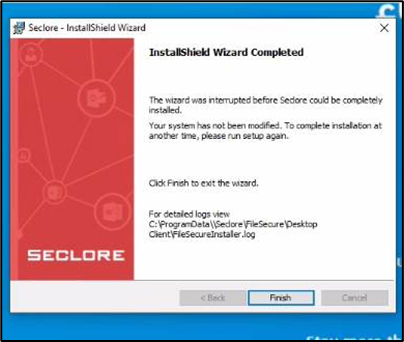
In certain cases, installation or uninstallation of the Seclore Desktop Client can fail with one of the following errors:
- ERROR: WinLite already installed for some user
- ERROR: Seclore already installed
- Another version of the software is already installed
- Error while registering service (-1)
- Component is already registered
- This setup will perform an upgrade. Do you want to continue?
- Error "17000" installing injection driver
- MSI MainEngineThread is returning 1619
- Error 1500 — Another installation is already in progress
- Windows Installer prompts for the original .msi file during uninstallation
Before You Begin
Please ensure the following before attempting any installation or uninstallation:
- Verify your environment is supported — Check the supported OS, Office, and application versions here: Refer - Supported Environments and File Formats
- Ensure you have Administrator privileges on the machine to install/ uninstall Admin DC.
Solution 1: Unsupported Environment
- Refer to the Supported Environments and File Formats page.
- Confirm your OS version, Office version, and processor architecture are on the supported list.
- If your environment is unsupported or outdated, upgrade it to a supported version before retrying the installation.
Solution 2: Existing Client Blocking Installation
- An older or partially installed Seclore Desktop Client may be blocking the new installation.
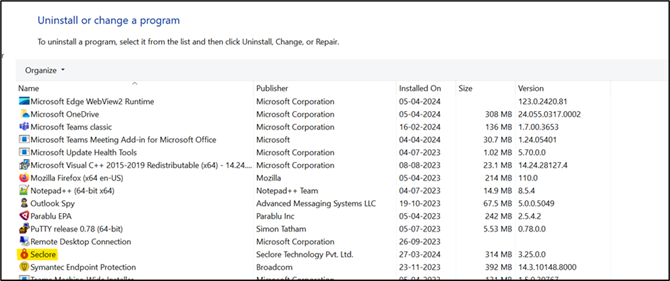
- Go to Control Panel → Programs and Features.
- Search for Seclore and uninstall any existing entry.
- Restart the machine.
- Retry the installation.
Solution 3: Adminless Client Installed Under Another User Profile
- If the error indicates Seclore or WinLite is already installed, an Adminless Client may be present under a different user profile on the same machine.
- Log in as Domain Admin or Local Admin.
- Open Task Manager → Users tab to see all active user profiles on the machine.
- For each user profile, check whether the following folder exists: C:\Users\<username>\AppData\Local\Seclore
- Log in as the user who has the Adminless Client installed.
- Uninstall the Adminless Client via Control Panel → Programs and Features.
- Once uninstalled, retry the installation.
Solution 4: MSI File Locked or Blocked (Error 1619)
- If installation fails with MSI MainEngineThread is returning 1619:
- Copy the installer (.msi or .exe) to a local path, such as:
C:\Windows\Temp\ or Desktop - Right-click the installer file → Properties → If an "Unblock" checkbox appears at the bottom, check it → Click OK.
- Run the installer from this local path with Administrator privileges.
- Do not run the installer directly from a network share, mapped drive, or a compressed/zipped folder.
- Copy the installer (.msi or .exe) to a local path, such as:
Solution 5: Error "17000" — Injection Driver Failure
- This error occurs when Windows security settings prevent kernel-level driver injection during installation.
- Step 1 — Toggle Memory Integrity (Core Isolation):
- In the Windows search bar, type Core Isolation and open it.
- Toggle Memory Integrity:
- If it is currently On → turn it Off
- If it is currently Off → turn it On
- Restart the machine (a restart is mandatory for the change to take effect).
- Retry the Desktop Client installation.
- Toggling Memory Integrity reinitializes Windows kernel driver validation, which can clear stale or partially registered driver states that block installation
- Step 2 — Check for existing installation conflicts:
- After restarting, confirm whether a Seclore Desktop Client entry still exists in Control Panel → Programs and Features.
- If yes, uninstall it, restart again, and then reinstall.
- Step 3 — Verify the Desktop Client version:
- If the version being installed is End of Life (EOL) or outdated, it may be incompatible with your current OS.
- Refer - Seclore for Windows | Seclore Documentation Portal
- Download and install the latest version from your Policy Server portal:
Policy Server URL → Online Access tab → Seclore for Windows
Solution 6: Antivirus / EDR Software Blocking Installation
- Security tools such as antivirus or Endpoint Detection & Response (EDR) software may block Seclore's driver injection or service registration during installation.
- Temporarily disable your antivirus or EDR software during installation, or
- Whitelist Seclore binaries in your security solution and retry the installation.
Refer - Desktop Client Exception List : Seclore Customer Support - Get Help Today - If you do not have access to modify antivirus or EDR settings, contact your IT Administrator for assistance.
Solution 7: Windows Installer Prompting for Original .msi File
- If uninstallation fails and Windows prompts for the original .msi file:
- Navigate to C:\Windows\Installer on the affected machine.
- Check if the original cached MSIfor the installed Seclore Desktop Client version is present.
- If found and version-matched, the uninstallation can proceed normally — point Windows Installer to this file.
- If not found, please contact Seclore Support for assisted cleanup and reinstallation.
- Using a different version of the MSI will not resolve this prompt — the file must exactly match the originally installed version.
Solution 8: Another Installation Already In Progress (Error 1500)
- If installation fails with Error 1500 — Another installation is already in progress:
- Open Task Manager and look for any active Seclore or Windows Installer process.
- If found, end the process.
- Restart the machine and retry the installation.
Still Facing Issues?
If none of the above solutions resolve your issue, please reach out to Seclore Support with the following details:
- Error screenshot.
- Seclore Desktop Client version being installed
- Windows OS version and build number
- Installer log file from: C:\ProgramData\Seclore\FileSecure\Desktop Client\FileSecureInstaller.log
Need more help ?
Contact Seclore Support