Applies to: Seclore Desktop Client for Windows
Symptoms and Error:
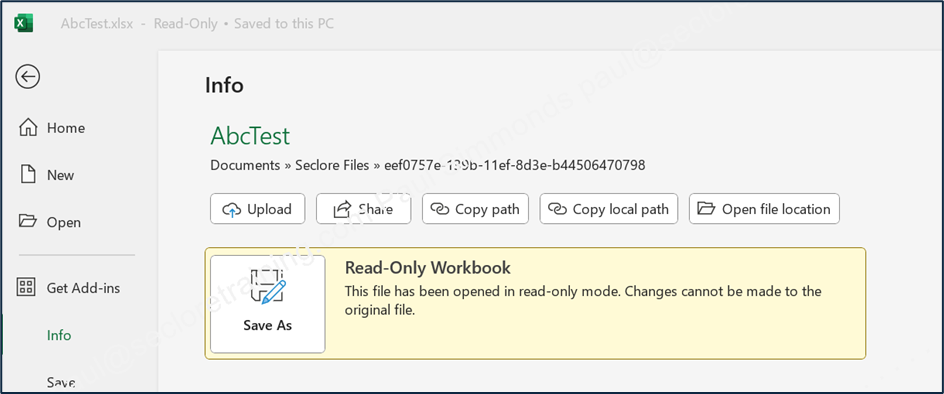
- Protected files are opening in Read-Only Mode even though Seclore Permissions are given.
- Unable to edit and save the same files.
- Unable to copy to or from specific location (e.g. network drive).
Solution 1:
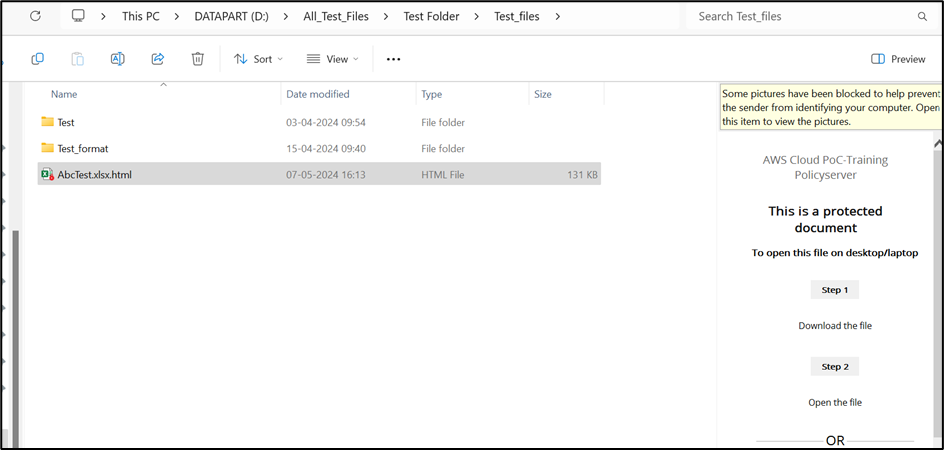
Disable the preview pane if it is enabled. [File Explorer --> View Tab --> Preview Pane]
If the preview pane is enabled, then the file is considered as 'in use' and when the user opens it, the file opens as read-only.
Solution 2:
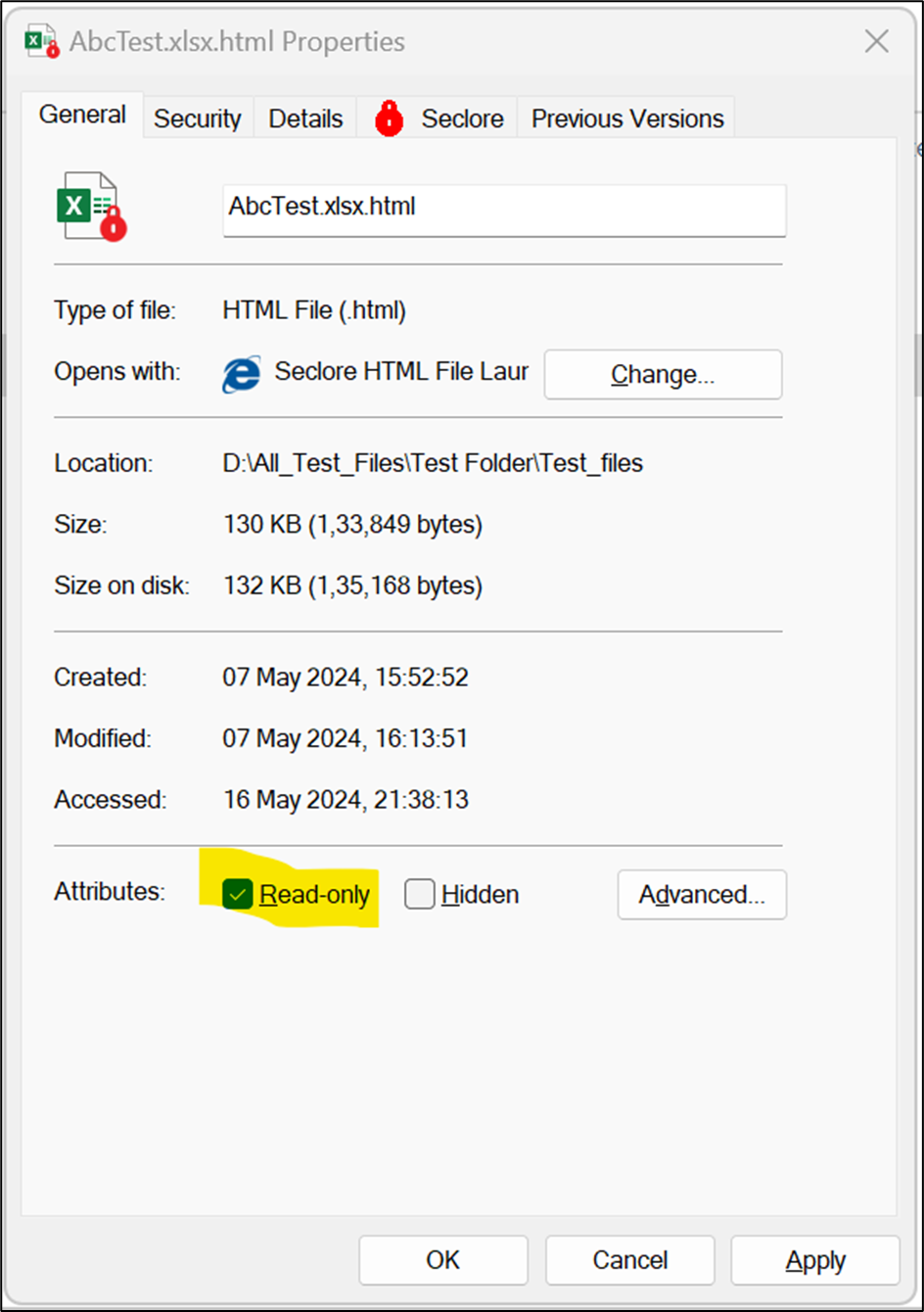
Disable the read-only attribute if is enabled: [Right click on the file --> Properties --> Attributes --> Read Only --> Uncheck --> Click on Apply].
Solution 3:
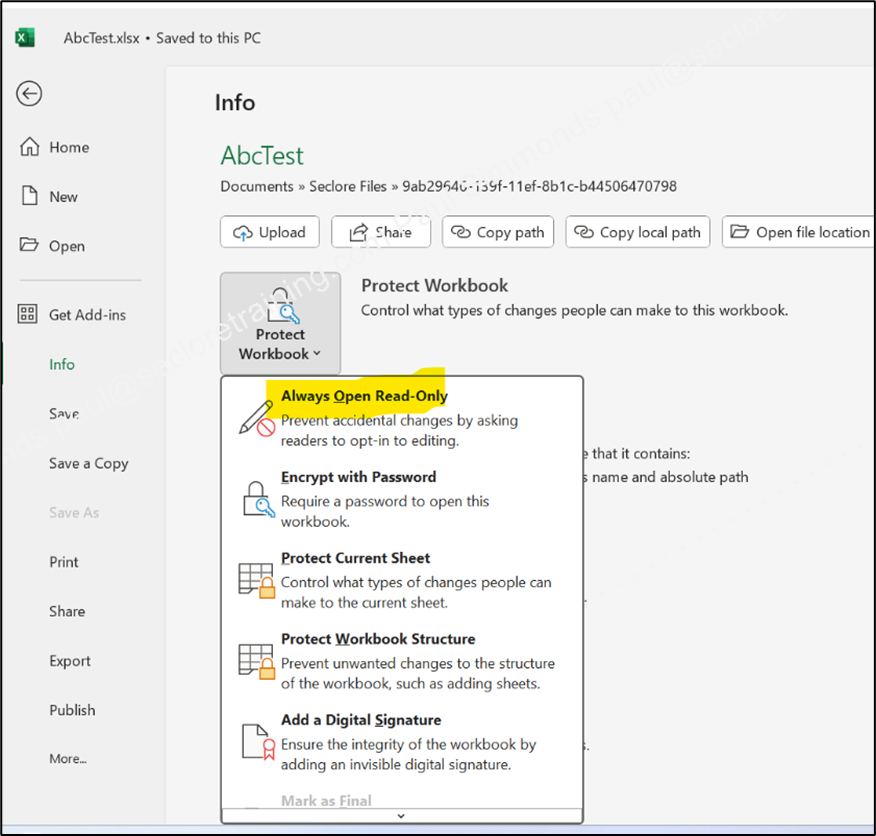
If Protect Document in Excel is enabled and is selected as "Always open read-only", then please disable it. [On Excel sheet --> File Menu --> Info --> Protect Document].
Solution 4:
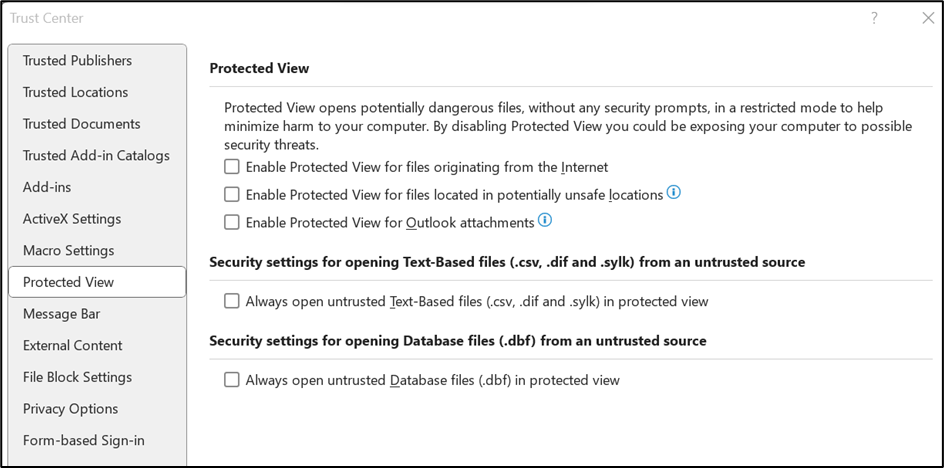
Sometimes if Protect View is enabled, then the file might open as read only and protected view. Check if you can disable protected view and check. [On Excel sheet --> File Menu --> More --> Options --> Trust Center Settings --> Protected View].
Solution 5:
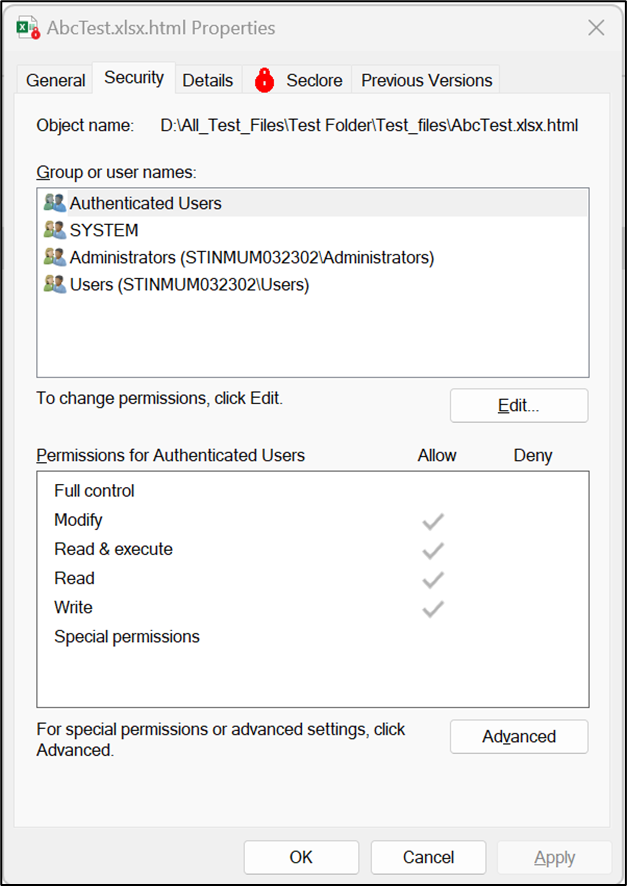
Check NTFS permissions on the file or the folder in which the file is located. [Right click on the file --> Properties --> Security].