Purpose
This knowledge base explains a scenario where users are unable to initiate a Remote Desktop (RDP) session to a Windows machine when a Seclore‑protected file is already open on that machine.
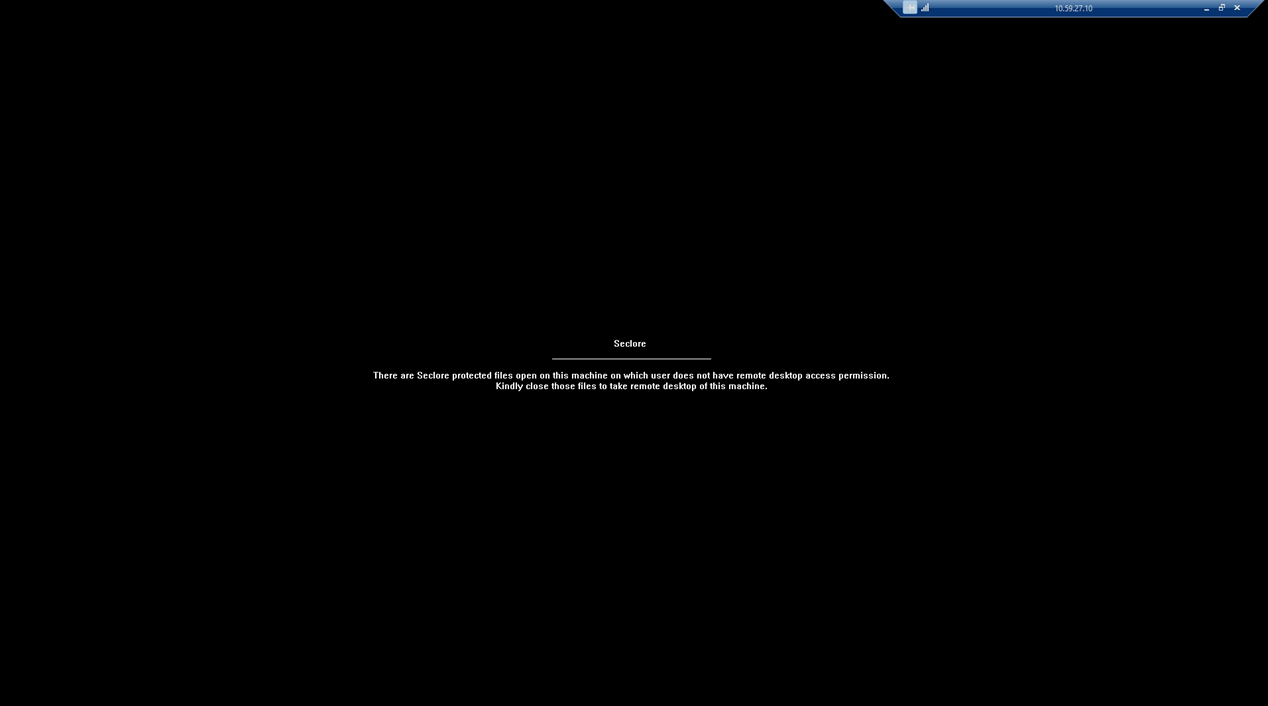
Although the user has Read and Write permissions on the protected file, the remote machine blocks the RDP connection and displays the below message to the user. This article clarifies why this happens and how it differs from recent client behaviour changes.
Scenario Description
- A Seclore‑protected file is opened locally on a Windows machine.
- The file remains open.
- A user attempts to initiate an RDP session to that machine.
- The RDP connection is blocked.
- The user sees a Seclore message indicating:
- A protected file is open on the machine
- The user does not have permission for remote desktop access
This occurs even though the same user has Read and Write permissions on the protected file.
This error behavior (including the black screen experience) is applicable only to Seclore Windows Desktop Client versions prior to 3.21.3.0.
Root Cause
The root cause is that the user does not have Screen Capture permission on the protected file.
This behaviour is by design and is the default behaviour of the Seclore Desktop Client.
When an RDP session is initiated to a machine where a protected file is already open:
- Seclore treats RDP as a remote screen viewing mechanism
- The Desktop Client enforces Screen Capture permission to ensure protected content is not exposed remotely
- If Screen Capture permission is missing, the RDP session is blocked
This check is performed regardless of Read or Write permissions.
Important Clarification: Behavior Change in Version 3.19.8.0
A change was introduced in Seclore for Windows Desktop Client version 3.19.8.0.
What Changed
- Users with at least Read permission can now open a protected file inside an existing RDP session without Screen Capture permission.
What Did Not Change
The behaviour described in this KB still applies when:
- A protected file is already open locally
- A user attempts to initiate an RDP session to that machine
In this scenario:
- Screen Capture permission is still required
- RDP will be blocked if the permission is not granted
- This behaviour is unchanged and intentional
Update: Client Behavior Improvement in Version 3.21.3.0
Starting from Seclore Windows Desktop Client version 3.21.3.0, the user experience for this scenario has been improved.
What Changed
- The black screen that appeared during a blocked RDP attempt in earlier versions will no longer appear